- topical German Railways structure from the middle of 2007
TIP:
The topical data bank architecture differs to a great extent from the previous ones. The whole structure was substantially improved and laid out on Meersprachigkeit of the data models. The tables and columns carry English names. In this respect the possibilities are also to edit of the data bank versions differently. Topical model data banks can be edited with the Moskito-model editor. This functions completely on the basis of the Moskito's menu and Dialogsprache. Previous versions of the data models have been used to about in the middle of 2007 and can be edited exclusively with on Access and Visual BASIC based, older version of the model editor (see previous chapter „Construction of a data model with the help of the model generator“). In the other one the topical method about the model editor is documented.
Meaning of the data model
The model data bank fixes like the structure of all objects relevant for the department and components in Moskito should be illustrated and with which relevant information single object, - or plan types should be equipped.
Name conventions in the data model
To guarantee a uniform appearance of the surface, the Bennnung of the objects and components should correspond to the following conventions:
Stammsprache:
•The objects performed in the field Stammsprache may include in the name of no blanks or special characters.
•Because these names are used into all languages, they should be put on in in English.
•The names must be unequivocal, i.e. no object name may be used for another object.
•This is the name which can be questioned as a pseudo attribute $name for every object / element.
Foreign language:
•The name performed into foreign language is, e.g., in the dialogue data | Qualities object, indicated titles. This can contain blank and special character and should describe sensibly the object.
•For every language into which the model must should be used a name exist. If she is absent, it is fallen back on the "Stammsprache".
•The names must be unequivocal into every language, i.e. no object name may be used for another object.
•The linguistic-dependent names of the objects can be worked on afterwards. The name of the "Stammsprache" should not be changed, this can lead to the fact that menus or procedures do not function any more.
•The linguistic-dependent name is available about the pseudo attribute $altname.
Application of the model editor
With the model editor the qualities of the objects, plan kinds or components can be worked on and of course new objects, or complete model structures be put in. Also objects, - and component names can be translated into other Benutzersprachen.
If you liked to use a data model you should provide, in any case, the Moskito-model editor. As a Moskito - G SHARP of users an empty model data bank stands to you provided. The complete data bank architecture, i.e. all tables and their structural relations with each other are included in it.
The empty data bank bears the name DataModel.mdb and is in the list:
... \\Moskito\rahmen\Database\Templates\
Functional overview of the Moskito model editors
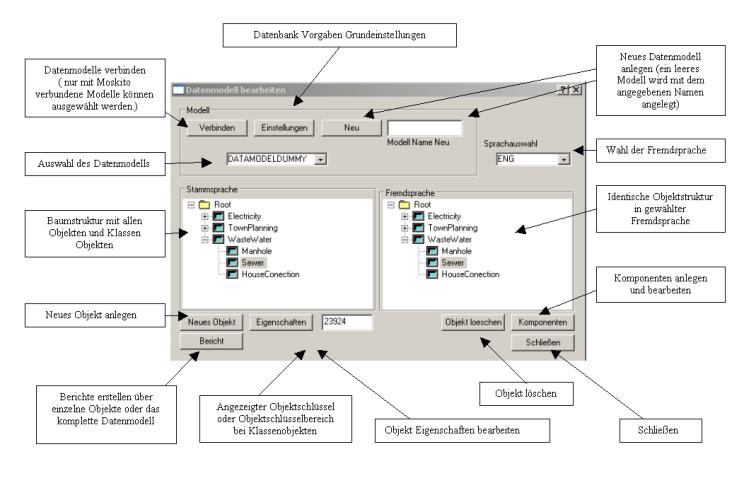
Basic settings
„Database of set-up“ - basic settings of the data bank carry out.
Before you should furnish a new data bank you to itself the basic default makes sure this for data model Default also to the desired demands of her data model do justice.
Basically you had to do to yourselves about that clearly his how many different model definitions her model should contain and how many plan types with which graduation qualities should be assigned to the respective model definitions. Also you should know in like many and into which foreign languages her data model should be used. Or into which languages this could be used later once!
You can put all these data model signs about the dialogue „Database of set-up“ (picture).
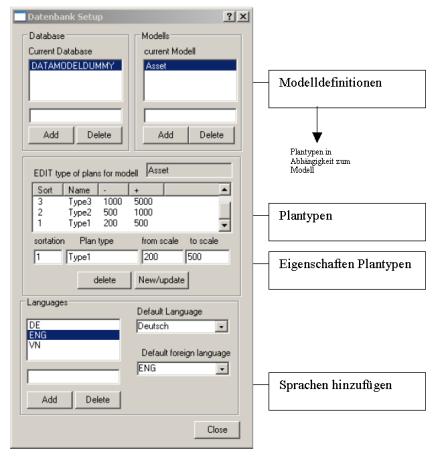
For every invested model definition, as for example "continuance", or in the English-linguistic example, "Asset", the respective plan types with her graduation data are defined.
Thus can be assigned later single objects or components, to all or only certain models or plan types. A model, or plandarstellungsabhängige structure can be thereby moved for every object and every single component. In Moskito all graphic stamping is universally adjustable.
TIP:
The class Root contain all available model definitions and to those in it to defined plan types. New objects receive the same qualities like they are predefined in the being higher object cash.
Object put on
The editor can be opened among other things about the command line in you “MakeDialogBox 196“ give. Open the model editor and select the data model.
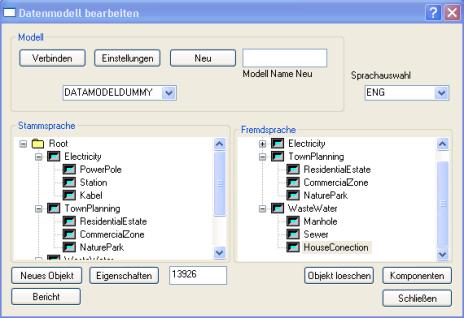
Picture:
In to the illustrated example the model is shown thematically at stream, town planning and canal referring model data bank. In it there is under the level Root first the object class Electricity. Under it there lie the objects "cable", "PowerPol" and "station".
The object class "Root" stands on the uppermost object level always. All objects or object classes are listed in the tree structure below this "source class".
If a new object is put on the object marked in the main window forms his see higher object or this then the object class.
Putting on occurs through operating the badge „new object“. An object with predefined name is put itself on and the following dialogue Opening.
Object names and qualities fix
Object type
The object type can be distinguished, between point, line, or text.
Foreign linguistic name
The name of every objects can be translated into different languages. Into which languages depends on it for what for languages her model were planned (see above "basic settings"). In the field „Language edit“ can the foreign linguistic name will brag. The name is assigned, as well as all the other satisfactory fields after which the badge changing was operated.
Object key
An object key will put in with of an object automatically assigned, and can be changed at this point. If an object key area is assigned to an object to all objects which have this object to the source object, object key from this defined area assigned, as long as to the area, the object marked in the object tree, no other key assignment admits.
Model – And plan types of the object
Plan types and models can be added according to purpose for every model individually. In the plan types the graduations are defined for the later visibility in different graduations. They can fix so in which areas the object visibility should be, and in which graduations not.
Basically every object receives first the models and plan types also for the higher objects were defined.
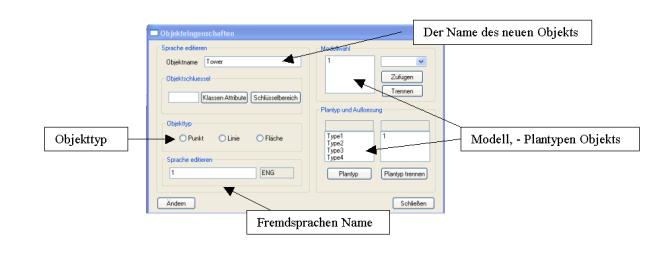
On operating changing badge the changed object name becomes in the tree structure, indicated below the before marked object.
Components put in
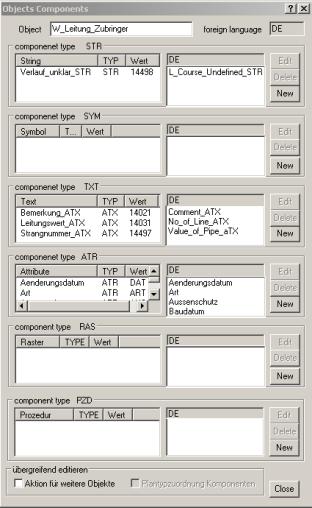
For putting on of all components the in the following illustrated dialogue was developed. Putting on occurs by operate of the respective "New" - badges.
These are all components to an object can be assigned performed. Lines (STREET), symbols (SYM), texts (TXT) or optional attribute texts (ATX), object attributes (ATR), or grids (RACE) and procedures PZD.
Tip:
By an internal countable process it is provided for it within an object and within a component type the same component name not twice can seem. Pay attention, hence, with theirs of the specific name allocation also to it.

While putting on a component standard names will be used just as while putting on the objects. Immediately afterwards a dialogue opens in the name of the component and the most important stamping can be edited.
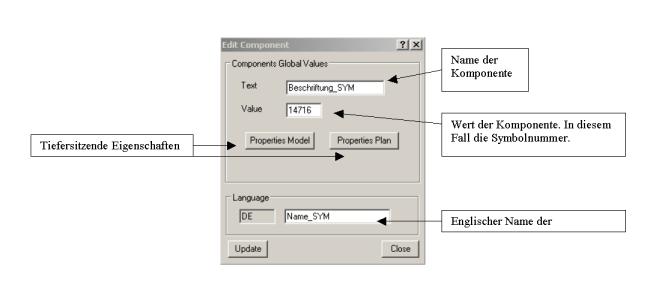
Deep-going out settings in dependence to the single model definitions or special plan types work as a model can be carried out with the badges „Properties“ and „Properties of plan“.
Properties Plantype
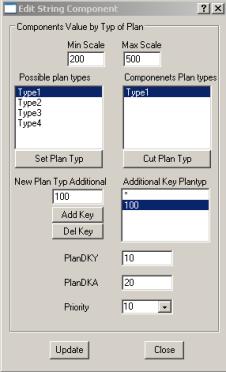
Assign from one or several plan types.
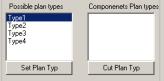
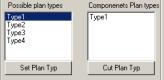
In the left window mark a plan type possible for this component, e.g., the "Type1". By operate of the button „set plan type“ this plan type of the component is assigned.

Provide now an additional key. Mark in the right window the plan type "Type1" and put down the field „New plan type Additional“ an additional key. In the illustrated example the value 100 was used.
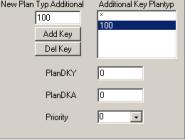
On confirming by the key "Add Key" the new key value of the Plantype "Type1" is indicated. It is enabled by the additional key within a level type definition to head for different representations.
If the additional key in the right field is marked the values of the representation option can be put.
The representation options for lines are adjustable above the fields with the names "PlanDKY" "PlanDKA" and "Priorty".
Priority:
A defined line type firmly lays with which priority the Priority is drawn. Does the line have to go on top recumbent, or are shown in proportion to other elements rather below recumbent? The value 30 corresponds, for example, to a high value. Components with a lower value are shown in the Moskito graphics with a lower priority and lie zeichnerisch under the half line with the higher priority.
PlanDKA and PlanDKY:
If a value is put down in these columns greater than 0, this is used as a new sign key for the announcement.
In this manner can be changed the colour and the appearance of elements about the graduation of single plan types or about the additional key.