The surface of the "ModellEdit.mdb" with her masks can be used largely (definition of the object classes, the objects, the object components, etc.) for the construction of own data model"". However, before her first use the tables from the data bank "ModellGlobal.mdb" with "ModellEdit.mdb" must be tied together:
Starting the "ModellEdit.mdb" (topical approach):
The more topical "ModellEdit" function is substantially lighter to start than the previous one. For starting you simply click of your office version (97, in 2000 or 2002) suitable ModellEdit file, e.g., ModellEdit_2002.mdb, twice. The following mask appears in her Access to window:
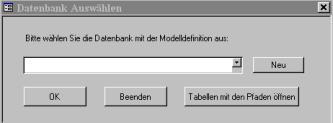
Select now the desired data bank. Should an existing data bank be edited, are extended, e.g., by additional object, then you click please on the small arrow (on the left beside Anew) and search her file system for the desired data bank. Select the file with the ending *.mdb and confirm the opening of the data bank with OK. If her data bank is not included in the list, you must click first on "Anew" and search her list system for the data bank. Then after unique call this file stands to them with next sometimes for the choice and they need only on the small arrow click.
Starting the "ModellEdit.mdb" (approach with older versions):
In addition the ModellEdit.mdb must be opened. The input mask of the model generator ordinarily opens with the double click on the file symbol directly. To tie together tables from other data banks, the file must be marked before and then under avoidance of the intended start procedure (which opens immediately a mask) are opened, while one <>clicks them with low-spirited <>key SHIFT twice. then ModellEdit.mdb opens that window remains in the background and must be got to the wide work in the foreground. Then have to go the menu point "Datei|Externe Daten|Tabellen tie together... "are chosen.
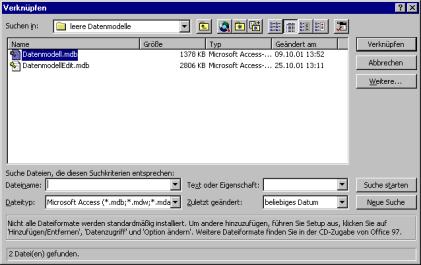
Go on "tying together". There opens the following dialogue:
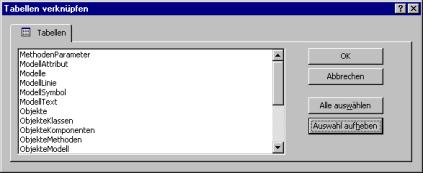
Go "select on everybody" and afterwards on "OK".
The tables from ModellGlobalDE.mdb now are dynamically tied together (black arrow) and are able about the masks in ModellEdit.mdb always topically are indicated and are processed:
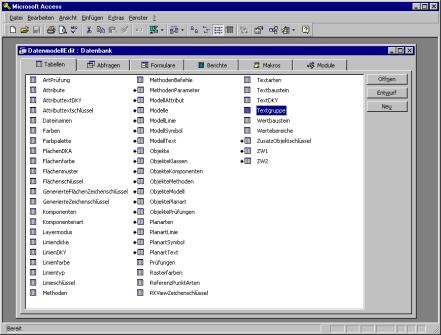
In addition ModellEdit.mdb must be closed and again - this time without held <SHIFT >key separate by an easy double click - are opened.
Construction of the data model – use of the Edit data bank:
Putting on of new objects or components runs in existing or new data banks in the same way.
If you liked to open a new data bank, need first an empty presentation. (See previous description to the older Editieraufruf)
To the relief this is provided by Moskito. They find this „almost empty“ data bank in the Moskito program list under Moskito\Rahmen\Database\ModellGlobal.mdb.
In this file „ModellGlobal.mdb“ if the right data structure is already put on. Because this file should be also used in future as a basic presentation, it is necessary to copy this before and to rename. In this example we copy the file to C:\temp and call the "ModellGlobal.mdb" in "TotalNormal.mdb" around.
After you have done this, decrease to the mask illustrated on top and select Anew. In the example we maneuver to the suitable file memory place C:\temp, select the file "TotalNormal.mdb" and confirm the opening of this data bank with OK.
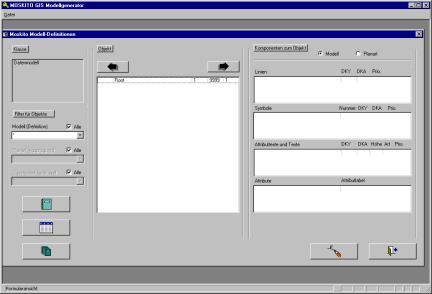
The Moskito model generator is loaded and you should see the following picture.
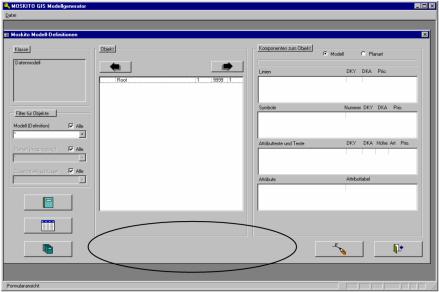
Now to the new construction of new object structures must be passed over in the Editiermodus. This is to be reached about the button with the stylised pencil. There occurs a code-word query. The code-word is in the older versions "GRADIS" and in newer versions "Gawk".
Only after the code-word was questioned, other buttons are available. They appear in the marked area. The buttons allow the real editing of her data bank which, e.g., from the Neuanlegen or extinguishing of objects or components can exist.
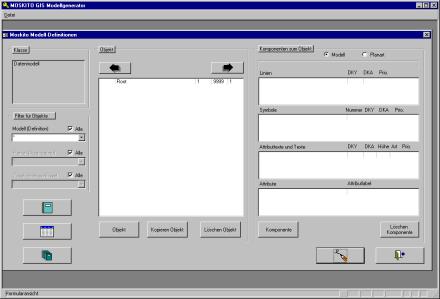
Even if about these input masks a large part of the data model can be edited, certain entries have to go directly in the tables of the data bank, e.g. "TotalNormal.mdb" are made, for example if certain object methods should be put down. That is e.g., that as in a Batch file suitable orders are given which are begun, e.g., by calls of an object name from the data bank. This deposited automatic is defined in the data bank namely in the table Object methods. To reach directly in the data bank you click the data bank file simply twice and Microsoft Access the table overview opens to them.
Possibly you must carry out according to used Access version before the treatment of the data bank a conversion. Access points out them, however, already to it and automatically shows you the right way how they convert her data bank for her used Access according to version. (Data bank close >Extra> data bank utility programs> data bank convert)
If they use logically the conversion kind to the office version with them also the model generator of Moskito have started or later want to process further her data bank. If they have worked with the ModellEdit_97.mdb they convert the data bank into office 97, they have worked with the ModellEdit_2002.mdb convert into office in 2000, etc.
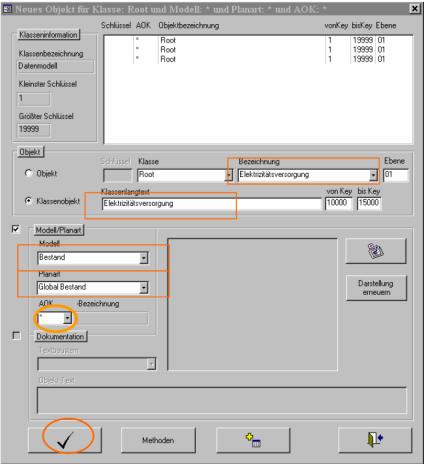
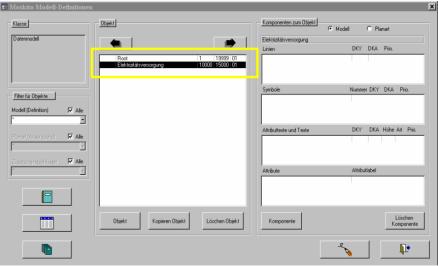
After the new first-class "electricity supply" is put on now becomes by a double click on it in this class subject jumped. Now objects should be also assigned to the first-class "electricity supply" invested anew. In addition the button Object is clicked. Putting on a new object happens at the in each case active level.
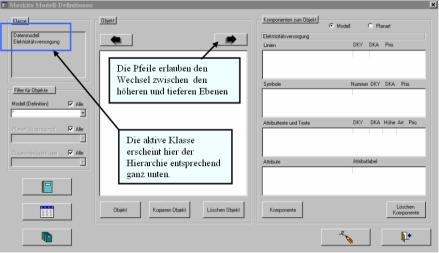
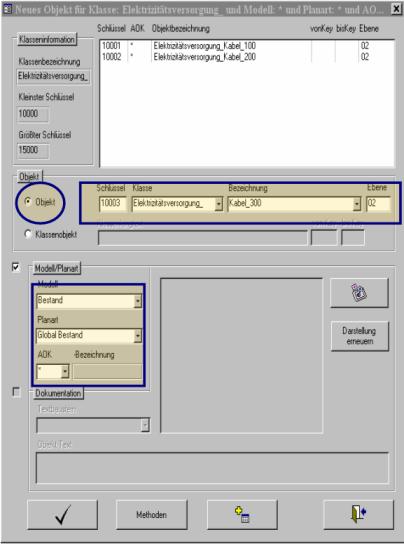
Putting on an object in the first-class electricity. Award an object key, a very short and unequivocal object name and the level in the data model (02).
It is absolutely to be recommended to distinguish already because of the overview and better optical separation of the single classes, the object names with low lines. Hyphens and commas should be absolutely avoided. Also should be used Instead of "ä" "ae" and Instead of "ü" better "ue"!
The last step for the object production: Select under model "Continuance" and under plan kind „global continuance“. In the field Compulsory health insurance scheme you put down in the doubt a starlet (*). For the end they confirm the object production with the „Okay hook below on the left.
In the example 3 are Objects (Kabel_100 to Kabel_300) to see in the first-class electricity supply.
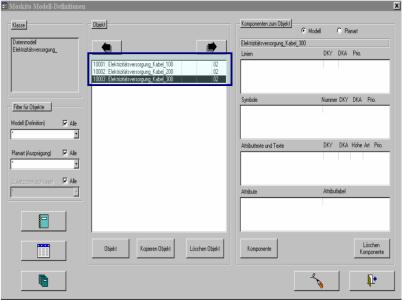
Three objects were put on, consisting of different cable types should be shown in the plan separately. Now to these objects single components should be put on or be defined. Or differently expressed which should reflect objects which the reality must appear in the data bank not only, but be described in detail in her representation. So, e.g., the way like you in the plan zeichnerisch are shown which line strength and which colour is used for the representation. Also is to be fixed about the components around which type concerns, is it, for example, a symbol or a line?
To provide these qualities, an object must be selected first from the list. Anschleißend the badge "component" is clicked and the following window opens.
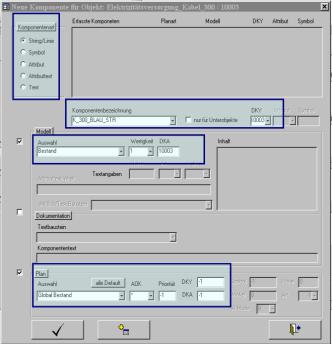
Explanation should be filled to the single fields in suitable order, as well as this by the component production.
Component kind: Here it is fixed what kind of element it concerns. In the example "string / line" was selected. In the presentation data bank äModelGlobal.mdb. (or the copy of äTotalNormal.mdb) if some component kinds are already, therefore the abbreviation "_STR" or after choice of a symbol the ending "_SYM" appears after choice of a line automatically.
Component name: Here the name of the suitable component is to be put down. It is to be awarded Absolutely recommendable on account of the clarity to the same DKY and numerical value DKA, just like the object number. In the example the component "K_300_Blau_STR" with the DKY 10003 and the DKA 10003 is assigned to the object 10003 (Kabel_300).
Model - choice / valency / DKA: At this point it is fixed which model qualities the component should own. On these qualities it is fallen back, for example, in a plan check. The valency lays, e.g., firmly about how many information the object or the component should dispose. It is given at this point, for example that at least two qualities had to exist, however, these have not been put on, the plan check will announce a mistake. It is to be considered, in any case, thoroughly which valency you fix. In addition an example: Accepted you fix that to the object house the component house number may appear always only once. Because this seems at first logical for them, select the valency 1. However, in the reality several house numbers will sometimes award. Now with the untying of the reality are given in the plan at some houses two House numbers. A mistake is announced thus on account of the valency setting (1) to the plan check.
Plan – choice / priority: The components are drawn by information of the priority value in predetermined order. With the Default (-1) settings the sign result remains those on which the objects were also put down in the plan. It is worth that the higher value of the object component is also shown with preurgency, or is drawn, in other words, last and covers therefore the elements lying behind it.
The entries relevant for model which cannot be made with the Edit - surface
Methods
Should an entry "detail drawing" appear, e.g., in the pop-up menu of an object,"" entries are necessary in addition in the following tables:
In the table of method parametres pop-up menu is put down as a function, in Prameter1 the name, in Parameter2 ALL_OBJECT and in MethodenID the ID of a method which is defined in the table Object methods.
In the table Object methods the object oath for which object the method should be available is put down in the column. The model is put down on model, in method number (not yet awarded) number, in method name an explicatory name and in method the executive method (n). Word wraps can be generated with CTRL+Enter.
Check
To check the objects in a plan whether they do justice to the definitions of the data model, there is under extras | Examine | Object a dialogue with which one can check single or a group of objects.
Normally it is checked whether DKY, DKA, valency (number) correspond etc. to a line, a text, etc. to the data model.
Should check be still carried out which goes out the definitions in the table, other test criteria can be put down in the table Object check.:
In the column ObjektID it is given the ID of the object. Complementary in addition in the column KomponentenID the ID of the component. The model for which the definition should be valid comes to the column model. To the column group comes an entry which gives to the rule a suitable name and informs the programme which lines belong to it to the test definition. Different objects can use same-being check, because, however, for an object several check can be valid, these are distinguished about the group of each other. In the column assortment own (sequential) number must be put down for every line. Then on test kind it is put down what should be tested:
•genau_einer (exactly one element from this group must exist in the object)
•maximal_einer (maximum one element from this group must exist in the object)
• minimal_einer (minimally an element from this group must exist in the object)
• if (called element exists (assortment = 1))
•then (each of the following elements must also exist)
•dann_nicht (may exist none of the following elements also)
•last there is still the possibility to call a function and to check result (Bsp: m_le (DBquery (FROM, TO from open object/noq))).