Die Menü- und Dialogsprache dient dem Zweck, Prozeduren zu erstellen, die Benutzereingaben aus Dialogen, Popup- oder Pulldown-Menüs oder bei Mausklick auswerten und weiterverarbeiten.
Zentrale Bedeutung kommt hier dem Zugriff auf die Dialogelemente wie Eingabefelder, Listboxen, etc., sowie der Übergabe von Koordinaten (z.B. Position des Mauszeigers beim Klicken) zu.
Dialogfeldtypen
Der Inhalt eines Feldes hängt vom Typ des Feldes ab. Ein Button hat eine andere Interpretation als eine Eingabezeile. In Moskito werden die folgenden Interpretationen verwendet:
Button
Wenn der Button gedrückt ist liefert der Eintrag den Text 1, sonst den Text 0
Eingabezeile (Textfeld)
Als Text wird der Inhalt des Feldes übergeben.
Festtext
Geliefert wird der Name oder Titel des Textes.
Listbox
Es wird die selektierte Zeile der Box übergeben; bei Listboxen, die mehrere Zeilen selektieren können, wird eine kommaseparierte Liste geliefert.
Combobox
Es wird die selektierte Zeile der Box eingetragen, bei Listboxen, die mehrere Zeilen selektieren können wird eine kommaseparierte Liste eingetragen. Wenn ein von den Einträgen abweichender Text in die Eingabezeile der Box eingetragen ist, dann wird dieser Text geliefert.
TreeView
Geliefert wird der Name des Eintrags im Baum, der angeklickt ist. Es wird nur der eigentliche Name übergeben, nicht die Hierarchie.
Zugriff auf Dialogfelder
Die Zugriffsfunktionen auf Dialogfelder sind die Funktionen in der Funktionsreferenz, die mit io_ beginnen. Als Parameter erwarten sie die Nummer des Dialogs, die Nummer des Dialogfeldes und ggf. Angaben darüber, was in die Felder eingetragen werden soll.
Inhalt von Dialogfeldern an Moskito übergeben
Der Inhalt eines Dialogfeldes wird an einen Moskitobefehl übergeben, indem ein mit einem %-Zeichen eingeleiteter und abgeschlossener Platzhalter laut der untenstehenden Liste eingesetzt wird:
%C% oder %c% |
Es wird der Text des aktiven Dialogfeldes ermittelt und dieser Text wird in die Ausgabe eingesetzt. Es werden keine Steuerzeichen, Zeilenvorschübe o.ä. zusätzlich eingefügt. |
%123C% oder %123c% |
Inhalt des Feldes Nummer 123. (s.o.) |
%123:100c% |
Inhalt des Feldes Nummer 123 in der Dialogbox 100. |
%123f% |
Steuerfunktion des Feldes Nummer 123. |
%123:100f% |
Steuerfunktion des Feldes Nummer 123 in der Dialogbox 100. |
%x% |
X-Koordinate der aktuellen Mausposition. Dies hat nur bei Mausdefinitionen und Tablettdefinitionen eine Bedeutung. Sonst ist dieser Wert immer 0. |
%y% |
Y-Koordinate. Dies hat nur bei Mausdefinitionen und Tablettdefinitionen eine Bedeutung. Sonst ist dieser Wert immer 0. |
%px% |
X-Koordinate der linken unteren Ecke des Dialogs. |
%py% |
Y-Koordinate der linken unteren Ecke des Dialogs. |
%ppx% |
X-Koordinate der linken unteren Ecke des aufrufenden Buttons. |
%ppy% |
Y-Koordinate der linken unteren Ecke des aufrufenden Buttons. |
%fx% |
X-Koordinate der linken unteren Ecke des aufrufenden Buttons bei Toolbars. |
%fy% |
Y-Koordinate der linken unteren Ecke des aufrufenden Buttons bei Toolbars. |
%i% |
Item-Id. Es wird die Nummer des aktuellen Dialogfeldes eingesetzt. |
%I% |
Dialog-Id. Es wird die Nummer des aktuellen Dialogs eingesetzt. Damit kann auch auf Felder in anderen Dialogen zugegriffen werden. |
%n% |
Tastencode. |
%N% |
Count-Wert, bisher verwendet bei Scrollrad-Events |
%m% |
Messagecode. |
%X(...)% |
Der statt ... eingefügte Moskito-Befehl wird ausgeführt. Das Ergebnis wird in der Zeile eingefügt. |
%% |
%-Zeichen. Wenn an einer Stelle zwei %-Zeichen hintereinander angegeben werden, so werden diese durch ein %-Zeichen in der Ausgabe ersetzt. Entsprechend müssen für zwei benötigte %-Zeichen vier in das Menü geschrieben werden. Bei Schachtelung von Funktionsaufrufen wird der Platzhalter als erstes ersetzt, so dass die Moskitofunktionen mit den Werten arbeiten können. |
! |
Kommentar. Der Inhalt dieser Zeile wird ignoriert. Damit der Text nicht im Kommandofenster erscheint, sollte davor ein "s." gesetzt werden. |
|
|
Listbox |
|
%123c% |
wie %123c0%. |
%123c0% |
Inhalt des ausgewählten Eintrags. Bei mehreren ausgewählten Einträgen werden diese als kommaseparierte Liste ausgegeben. |
%123c-1% |
Es werden alle Zeilen ausgegeben. Bei mehreren ausgewählten Einträgen werden diese als kommaseparierte Liste ausgegeben. |
%123c-2% |
Es werden alle Zeilen ausgegeben. Bei mehreren ausgewählten Einträgen werden diese in mehreren Zeilen ausgegeben. |
%123C% |
wie %123c0%, aber es werden die Zahlen ausgegeben, die als Itemdata angegeben wurden. |
|
|
Listviews |
|
%123c0% |
Inhalt der ersten Spalte in der ausgewählten Zeile. Entsprechend gibt %123c1% den Inhalt des zweiten Eintrags zurück, usw. |
%123c-1% |
Inhalt der ganzen Zeile, die markiert wurde. Dabei sind die Werte der verschiedenen Spalten durch | getrennt. |
%123c-2% |
Die Spaltenüberschriften werden durch | getrennt. zurückgegeben |
%123C0% |
Inhalt der ersten Spalte, dabei ist der Inhalt einzelner Zeilen durch Kommata getrennt. Entsprechend gibt %123C1% den Inhalt der zweiten Spalte zurück, usw. |
%123C-1% |
gesamter Inhalt (Inhalt aller Zeilen und Spalten), dabei ist der Inhalt einzelner Zeilen durch Kommata getrennt, der Inhalt einzelner Spalten in einer Zeile durch |. |
%x% |
Bei Listviews im Editmodus (message 8) die ausgewählte Zeile. |
%y% |
Bei Listviews im Editmodus die ausgewählte Spalte. |
Treeviews |
|
%123c% |
Inhalt des ausgewählten Eintrags |
%123cn% |
Inhalt des Eintrags n Ebenen über dem ausgewählten Eintrag |
%123c-1% |
Ebene des ausgewählten Eintrags |
%123C% |
Die durch | getrennte Hierarchie des ausgewählten Eintrags (alle darüber liegenden Ebenen) |
Bedingungen
Der Vorteil der Bedingungen ist, daß die Werte überprüft werden können, noch bevor sie weiterverarbeitet werden. Ist die Bedingung erfüllt, wird die Anweisung aaa ausgeführt, ist die Bedingung nicht erfüllt, wird die Anweisung bbb ausgeführt:
%?(Bedingung)?(aaa):(bbb)%
Mögliche Bedingungen sind:
filled() filled(999) filled(999:888) |
testet, ob das Dialogfeld leer ist |
||||||||||||||||||||||||||||||||||||||||||||||||||||||||
checked() checked(999) checked(999:888) |
testet, ob die Checkbox oder der Radiobutton angewählt ist |
||||||||||||||||||||||||||||||||||||||||||||||||||||||||
visible() |
testet, ob das Dialogfeld sichtbar ist |
||||||||||||||||||||||||||||||||||||||||||||||||||||||||
changed() |
Das Feld wurde (vom Anwender) geändert. |
||||||||||||||||||||||||||||||||||||||||||||||||||||||||
or(()()()) |
Oder-Verkettung mehrerer Bedingungen |
||||||||||||||||||||||||||||||||||||||||||||||||||||||||
and(()()()) |
Und-Verkettung mehrerer Bedingungen |
||||||||||||||||||||||||||||||||||||||||||||||||||||||||
equal(999,888c3) |
testet, ob der Inhalt eines Feldes gleich einem Wert ist |
||||||||||||||||||||||||||||||||||||||||||||||||||||||||
message(999) |
testet den Messagecode. Der Messagecode gibt zurück, was im Dialogfeld passiert ist (Linksklick, Rechtsklick, Tree ausklappen, etc.). Nicht alle Dialogelemente unterstützen Messagecodes.
Die Bedeutung der Messagecodes:
Treeview
Listview
Textfeld
|
Beispiele:
Dialogfelder Auswerten und Füllen
Ein Benutzer soll in das Textfeld mit der Nummer 102 den Namen eines Plans und in das Feld 103 den Layer eintragen. Wenn er anschließend den OK-Button drückt, wird die Moskitofunktion DeletePlan mit diesen Parametern aufgerufen:
” DeletePlan "NAM/%102c%" TYP/%103c% ”
Um eine Listbox mit mehreren Spalten zu füllen, müssen zuerst die Spalten vorgegeben werden. Die verschiedenen Einträge einer Spalte werden mit einem | voneinander getrennt.:
MakeDialogbox 165
io_setDialogField 165 108 "Rechts|Hoch"
anschließend kann die Liste z.B. mit einem DBquery gefüllt werden.
io_fillListbox 165 108 "123|456"
io_fillListbox 165 108 "2596258.74|5716022.20"
io_fillListBox 165 108 DBquery($x,$y from Object /noq)
Beim Klick mit der linken Maustaste sollen die Koordinaten des Punktes, an dem der Mauszeiger sich befindet übergeben werden:
”#P %x% %y%\n”
Wird nun die linke Maustaste betätigt, so wird dieser Text ermittelt und die in % eingeschlossenen Sequenzen werden ersetzt. %x% bedeutet die X-Koordinate der Stelle, an der die Taste gedrückt wurde. Wobei die Echtkoordinaten an der Mausposition verwendet werden und nicht die Pixelkoordinaten. %y% liefert entsprechend die Y-Koordinate. \n wird schon beim Einlesen der Kommandos durch einen Zeilenvorschub ersetzt. Sonst sind Zeilenvorschübe einfach durch getrennte Zeilen zu realisieren. Wird nun die linke Maustaste gedrückt, so erscheint als Kommando
#P 345 678
Der Dialog soll eine Eingabe im Kommandofenster erzeugen:
%%%%input %102c%
Beispiele für eingefügte Moskito-Befehle
WindowWinHelp ..\\help\\%X(AnyGetinfo global flag T24)%\\tabref.hlp HELP_FINDER 0
„AnyGetinfo lobal flag T24“ liefert die aktuelle Sprache („DE“). Entsprechend wird die Hilfe aus dem Verzeichnis ..\help\DE\ ausgeführt.
Beispiel zur Handhabung von Listviews
Der Listview hat die Dialogfeldnummer 100. Die dritte Zeile ist selektiert.
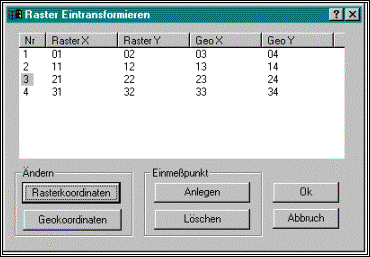
Zugriff auf einzelne Felder der markierten Zeile:
Echo c0: %100c0% c1: %100c1% c2: %100c2%
c0: 3 c1: 21 c2: 22
Zugriff auf die erste Spalte:
Echo C0: %100C0%
C0: 1,2,3,4
Zugriff auf die zweite Spalte:
Echo C1: %100C1%
C1: 01,11,21,31
Zugriff auf die selektierte Zeile:
Echo c-1: %100c-1%
c-1: 3|21|22|23|24
Zugriff auf den gesamten Inhalt des Listview:
Echo C-1: %100C-1%
C-1: 1|01|02|03|04,2|11|12|13|14,3|21|22|23|24,4|31|32|33|34
Beispiel zur Handhabung von Listboxen
Die Listbox hat die Dialogfeldnummer 100. Die dritte Zeile ist selektiert.
Gefüllt wurde sie mit
io_fillListbox 502 100 01 11 21 31
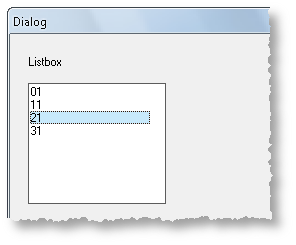
Zugriff auf den Inhalt:
%100C-1% liefert eine Kommaliste, Fall %100C-2% mehrere Zeilen.
Echo C-1: %100C-1%
C-1: 01,11,21,31
Echo C-2: %100C-2%
C-1: 01
11
21
31
Zugriff auf die selektierte Zeile:
Echo c: %100c%
c-1: 21
Beispiel zur Handhabung von Listboxen die mit /ITEMDATA gefüllt wurden
Die Listbox hat die Dialogfeldnummer 100. Die dritte Zeile ist selektiert.
Gefüllt wurde sie mit
io_fillListbox 502 100 /ITEMDATA 3:01 4:11 5:21 6:31
Zugriff über Itemdata:
Echo C: %100C%
C: 5
Der Restliche Teil ist identisch.
Beispiel zur Verwendung von Messagecodes in Listviews
--- DialogDefine 1600
DIALOG_1 DIALOG DISCARDABLE 20, 40 , 275, 190
STYLE DS_MODALFRAME | WS_OVERLAPPED | WS_CAPTION | WS_VISIBLE | WS_SYSMENU
CAPTION "Dialog"
Font 8, "Helv"
BEGINN
CONTROL ""; 100, "SysListView32", LVS_Report | _LV_FULLROWSELECT | LVS_EDITLABELS | WS_CHILD | WS_VISIBLE | WS_BORDER | WS_TABSTOP, 16, 18, 240, 150
END
---DialogExec_1600 0
io_setDialogField 1600 100 1|2|3
io_fillListbox 1600 100 a|b|c|d|e|f g|h|i
---DialogExec_1600 100
Echo /NOW "MessageCode <%m%>"
%?(message(0))?(Echo /NOW MessageCode 0):()%
%?(message(1))?(Echo /NOW MessageCode 1):()%
%?(message(2))?(Echo /NOW MessageCode 2):()%
%?(message(3))?(Echo /NOW MessageCode 3 Klick):()%
%?(message(4))?(Echo /NOW MessageCode 4 Doppelclick):()%
%?(message(5))?(Echo /NOW MessageCode 5 Klick rechts):()%
%?(message(6))?(Echo /NOW MessageCode 6 Doppelclick rechts):()%
%?(message(7))?(Echo /NOW MessageCode 7):()%
%?(message(8))?(Echo /NOW MessageCode 8):()%
%?(message(9))?(Echo /NOW MessageCode 9):()%
Siehe auch
--------------------OLD_TEXT---------------------
The menu and Dialogsprache serves the purpose to provide procedures which evaluate user inputs from dialogues, Popup-or Pulldown menus or with mouse click and process.
Central meaning comes here to the access to the dialogue elements like input fields, cunning boxing, etc., as well as the handing over of co-ordinates (e.g., position of the cursor with the click) to.
Dialogue fields and what they return
The contents of a field depend on the type of the field. A badge has another interpretation than an input line. In Moskito the following interpretations are used:
Badge
If the badge is pressed the entry delivers the text 1, but the text 0
Input line (text field)
As a text the contents of the field will hand over.
Festival text
The name or title of the text is delivered.
Cunning box
It will hand over the selected line of the box; with the cunning boxing which can select several lines a comma-separated list is delivered.
Combo box
The selected line of the box is put down, with the cunning boxing which will be able to select several lines a comma-separated list registered. If one text divergent from the entries is put down on the input line of the box, this text is delivered.
TreeView
The name of the entry is delivered in the tree which is clicked. Only the real name will not hand over it, the hierarchy.
Access to dialogue fields
The access functions on dialogue fields are the functions in the functional reference which begin with io_. As parametres they expect the number of the dialogue, the number of the dialogue field and if necessary information about what should be put down on the fields.
Contents of dialogue fields hand over to Moskito
The contents of a dialogue field will hand over to a Moskito's order, while a concluded place holder initiated with a % sign is used according to the following list:
%C % or %c % It are determined the text of the active dialogue field and this text is used in the issue. These become no tax signs, line feed or similar, in addition, inserted.
%123C % or %123c % of contents of the field Number 123. (see above).
%123:100c % of contents of the field Number 123 in the dialogue box 100.
%123f % of tax function of the field Number 123.
%123:100f % of tax function of the field Number 123 in the dialogue box 100.
%x % of X co-ordinate of the topical mouse position. This has only with mouse definitions and tray definitions a meaning. But this value is always 0.
%y % of Y co-ordinate. This has only with mouse definitions and tray definitions a meaning. But this value is always 0.
%i % Item-Id. The number of the topical dialogue field is used.
%I % Dialog-Id. The number of the topical dialogue is used. With it can be also accessed fields in other dialogues.
%n % of key code. (In work)
%m % of message code. (In work)
%X (...) % instead of... inserted Moskito's order is explained. The result is inserted in the line.
Example
WindowWinHelp. \\help \\%X (AnyGetinfo worldwide flag T24) % \\tabref.hlp HELP_FINDER 0
"AnyGetinfo lobal flag T24" delivers the topical language ("DE"). Accordingly the help from the list.\help\DE\is explained.
%% % - Sign
If at a place two % signs are given one after the other, these are substituted with a % sign in the issue. Accordingly must be written for two required % signs four in the menu.
With Schachtelung of functional calls the place holder is substituted as the first, so that the Moskito's functions with the values can work.
! Comment. The contents of this line are ignored. So that the text does not appear in the command window, should be put before it see...
Listviews
%123c0 % of contents of the first column in the well-chosen line. Accordingly returns %123c1 % the contents of the second entry, etc.
%123c-1 % of contents of the whole line which was marked. Besides, the values of the different columns are by | apart.
%123c-2 % The column headings become by | apart. returned
%123C0 % of contents of the first column, besides, the contents of single lines are separated by commas. Accordingly returns %123C1 % the contents of the second column, etc.
%123C-1 % of whole contents (contents of all lines and columns), besides, the contents of single lines are separated by commas, the contents of single columns in a line by |.
Treeviews
%123c % of contents of the well-chosen entry
%123cn % of contents of the entry n levels about the well-chosen entry
%123c-1 % of level of the well-chosen entry
%123C % by | separate hierarchy of the well-chosen entry (all being higher levels)
Example to the use of Listviews
The Listview has the dialogue field number 100. The third line is selected.
Access to single fields of the marked line:
Echo c0: %100c0 % c1: %100c1 % c2: %100c2 %
c0: 3 c1: 21 c2: 22
Access to the first column:
Echo C0: %100C0 %
C0: 1,2,3.4
Access to the second column:
Echo C1: %100C1 %
C1: 01,11,21.31
Access to the selected line:
Echo c-1: %100c-1 %
c-1: 3|21|22|23|24
Access to the whole contents of the Listview:
Echo C-1: %100C-1 %
C-1: 1|01|02|03|04,2|11|12|13|14,3|21|22|23|24,4|31|32|33|34
Example to the use of cunning boxing
The cunning box has the dialogue field number 100. The third line is selected.
It was filled with
io_fillListbox 502 100 01 11 21 31
Access about Itemdata:
Echo C: %100C %
C:???
Access to the contents:
Case-1 delivers a comma list, case-2 several lines.
Echo C-1: %100C-1 %
C-1: 01,11,21.31
Echo C-2: %100C-2 %
C-1: 01
11
21
31
Access to the selected line:
Echo c: %100c %
c-1: 21
The cunning box has the dialogue field number 100. The third line is selected.
It was filled with
io_fillListbox 502 100/ITEMDATA 3:01 4:11 5:21 6:31
Access about Itemdata:
Echo C: %100C %
C:5
The remaining part is identical.
Conditions
The advantage of the conditions is that the values can be checked, even before they are processed. If the condition is fulfilled, the instruction aaa is explained, the condition is not fulfilled, the instruction bbb is explained:
%? (Condition)? (aaa): (bbb) %
Possible conditions are:
filled () filled (999) filled (999:888)
checked () checked (999) checked (999:888)
visible ()
or (() ()
and (() ()
equal (999,888c3)
If contents of the field 888, field 3 have the value 999
message (999)
If the message code 999 is. The message code matters only with Treeviews and cunning boxing. There he is 1 if the check field was switched on, 2 if it was switched off.
Treeview
Message code |
Meaning |
1 |
Check box was switched on |
2 |
Check box was switched off |
3 |
Click on the Icon of an entry in the Treeview |
8 |
The result of this order is moved as a pop-up menu. Result: |Neu\nObject "%% 300c %%"\n Gives an entry with the name Anew and the function Object … |
9 |
Click on a name in an entry in the Treeview |
11 |
New Item well-chosen |
-1 |
Danebengeklickt |
Listview
Message code |
Meaning |
0 |
Text change |
3 |
Click |
4 |
DoppelKclick |
5 |
Legal click |
6 |
To the right of double click |
8 |
Edit of a field |
10 |
Functional call text of a tool tip, %x % is the active element |
Text-Entry
Message code |
Meaning |
0 |
default |
7 |
Change by Moskito |
Example:
--- DialogDefine 1600
DIALOGUE DIALOG_1 DISCARDABLE 20, 40, 275, 190
STYLE DS_MODALFRAME | WS_OVERLAPPED | WS_CAPTION | WS_VISIBLE | WS_SYSMENU
CAPTION "Dialogue"
Font 8, "Helv"
BEGINNING
CONTROL""; 100, "SysListView32", LVS_Report | WS_CHILD | WS_VISIBLE | WS_BORDER | WS_TABSTOP, 16, 18, 240, 150
---DialogExec_1600 0
io_setDialogField 1600 100 1|2|3
io_fillListbox in 1600, 100 a|b|c|d|e|f g|h|i
---DialogExec_1600 100
Echo/NOW "message code <%m %>"
%? (message (0))? (Echo/NOW message code 0 :()) %
%? (message (1))? (Echo/NOW message code 1 :()) %
%? (message (2))? (Echo/NOW message code 2 :()) %
%? (message (3))? (Echo/NOW message code 3 clicks :()) %
%? (message (4))? (Echo/NOW message code 4 Doppelclick :()) %
%? (message (5))? (Echo/NOW message code 5 clicks on the right :()) %
%? (message (6))? (Echo/NOW message code 6 Doppelclick on the right :()) %
%? (message (7))? (Echo/NOW message code 7 :()) %
%? (message (8))? (Echo/NOW message code 8 :()) %
%? (message (9))? (Echo/NOW message code 9 :()) %
Examples:
A user should put down on the input field with the number 102 the name of a plan. If he presses afterwards the OK-badge, the Moskito's function DeletePlan with this name is called:
” DeletePlan "NAM / % 102c% of" TYPE / 65532”
To fill a cunning box with several columns, the columns must be given first. The different entries of a column become with one | of each other separate.:
”.io_setDialogField 128 100 "names |Wert"”
afterwards the list can be filled, e.g., with a DBquery.
With the click with the left mouse key the co-ordinates of the point should be handed over, in the cursor is:
ö#P %x % %y %\n”
If the left mouse key is operated now, this text is determined and the sequences enclosed in % are substituted. %x % means the X co-ordinate of the place in which the key was pressed, %y according to % the Y co-ordinate. \n is already substituted while reading in the commands with a line feed. But line feed is simply to be realised by separate lines. If the left mouse key is pressed now, appears command
#P 345 678
and (345,678) are the real co-ordinates in the mouse position, so not the pixel co-ordinates.
The dialogue should generate an input in the command window:
%%%% input %102c %
Remarks
Reference